
Stop Hunting for Today. Set up your Google Calendar for friction-free viewing
Your calendar should work as fast as you do. If you’re wasting even a second finding “today,” you’re losing productivity. Let’s fix that right now.
The Calendar View Problem
What’s your favorite calendar view? Are you a month-at-a-glance person who wants to see the big picture? Are you busy with back-to-back events and only want to see today? Maybe you’re somewhere in the middle and prefer the weekly view.
My favorite? None of those.
Here’s what I want:
When I look at my calendar, I want to see TODAY without even a nanosecond of hesitation. I don’t want to glance at a month and figure out where I am. The same goes for the week view.
When I open Google Calendar, I want TODAY to hug the left side. I want to see the upcoming week ahead of me. Always.
The Problem with Standard Weekly View
By default, Google Calendar’s weekly view shows Sunday through Saturday. That’s great if today is Sunday. You see the next six days at a glance.
Not so fast. When Friday rolls around, you only see today and tomorrow. The rest of your week? Already gone. Sure, you can see the days that passed, but how much value is that?
You need a view that always shows you TODAY plus the next six days. Let’s set it up.
Step 1: Turn On Keyboard Shortcuts
First, make sure you have keyboard shortcuts enabled. Go to “settings” and find the “keyboard shortcuts” setting. Check the box to enable them.
Step 2: Set Your Custom View to “7 Days”
While you’re in settings, make one more change. Click on “View Options” in the left sidebar. In the “Set custom view” dropdown, change it to 7 days.
Step 3: Configure Your Custom View
Exit your settings to return to your calendar. Tap the “X” key. Because you have enabled keyboard shortcuts, you’ll see the “custom view” showing 7 days.
But you don’t want just any seven days. You want TODAY followed by the next six.
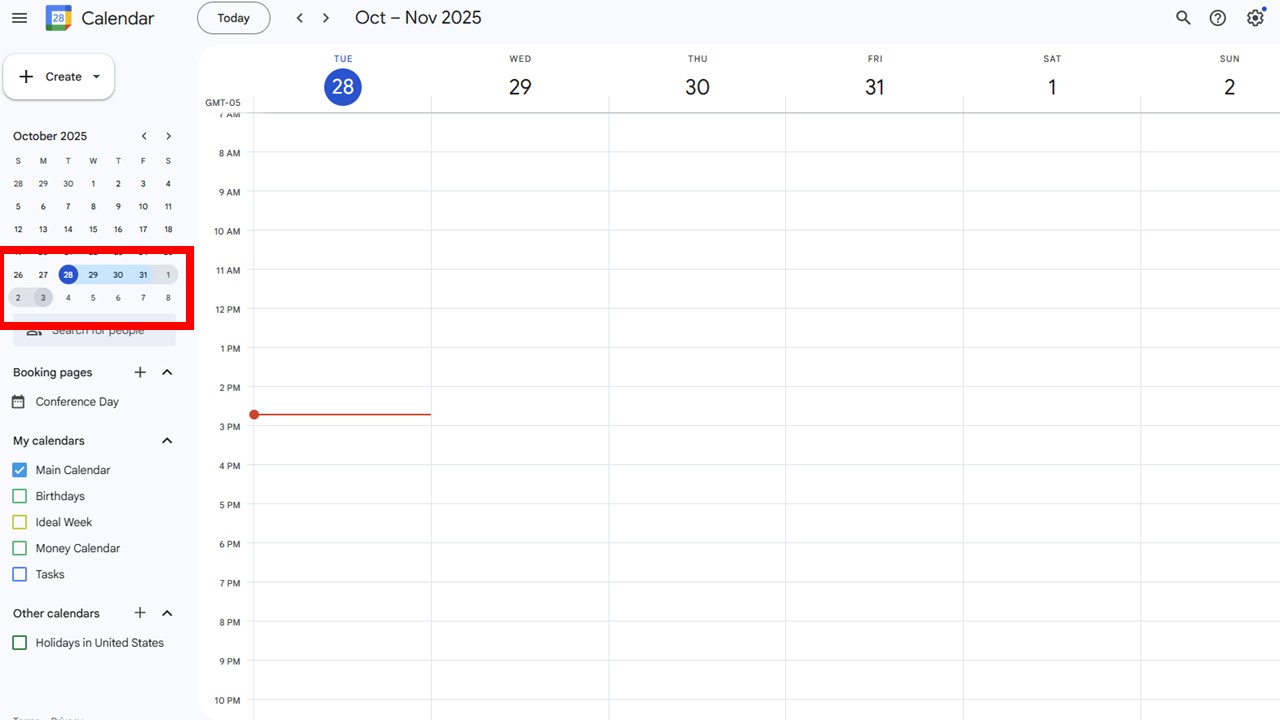
Look at the left sidebar. You’ll see a small month-at-a-glance calendar. Click on the current day and drag until you’ve highlighted today plus the next 6 days.
That’s it. You’ve just set your custom view.
The Result: Zero Friction
When you open Google Calendar now, TODAY hugs the left side. You always see the next 6 days ahead without scrolling.
This setup eliminates friction. Productivity isn’t just about big systems. It’s about removing tiny delays. Those seconds add up. Sometimes, those split-seconds add up.
Having TODAY in the same spot every time means you never have to think about finding it. You can look ahead up to 6 days without scrolling. It’s too easy not to do!
Make Your Calendar Work for You
Your calendar is one of your most important productivity tools. It should serve you, not slow you down. This simple setup takes two minutes and saves you time every single day.
Try this custom view setup today. Once you use it, you’ll wonder how you ever worked any other way.
Ready to transform your calendar productivity? Set up this custom view right now. Your future self will thank you!
If you enjoyed this content, join the email list so you never miss a thing. You receive two gifts for joining. One gets your desk clean. The other puts everything you have to do in one digital place. It’s time to Get Organized! and make it look easy.


Amy Hughes
November 18, 2025 12:24 pmThank you Frank! I have implemented your idea. It never occurred to me before.
[email protected]
November 18, 2025 2:52 pmAmy, thanks for stopping by! For me, this has brought an additional level of clarity to my schedule.